How to Move a Website to New Hosting Without Downtime
There are many reasons to change hosting: a cheaper plan, a faster server, better support or a server in another country that the services you need can reach without problems. Moving the files isn't hard, but if you rush it, the website may stop opening for a few hours, and some requests or emails may get lost.
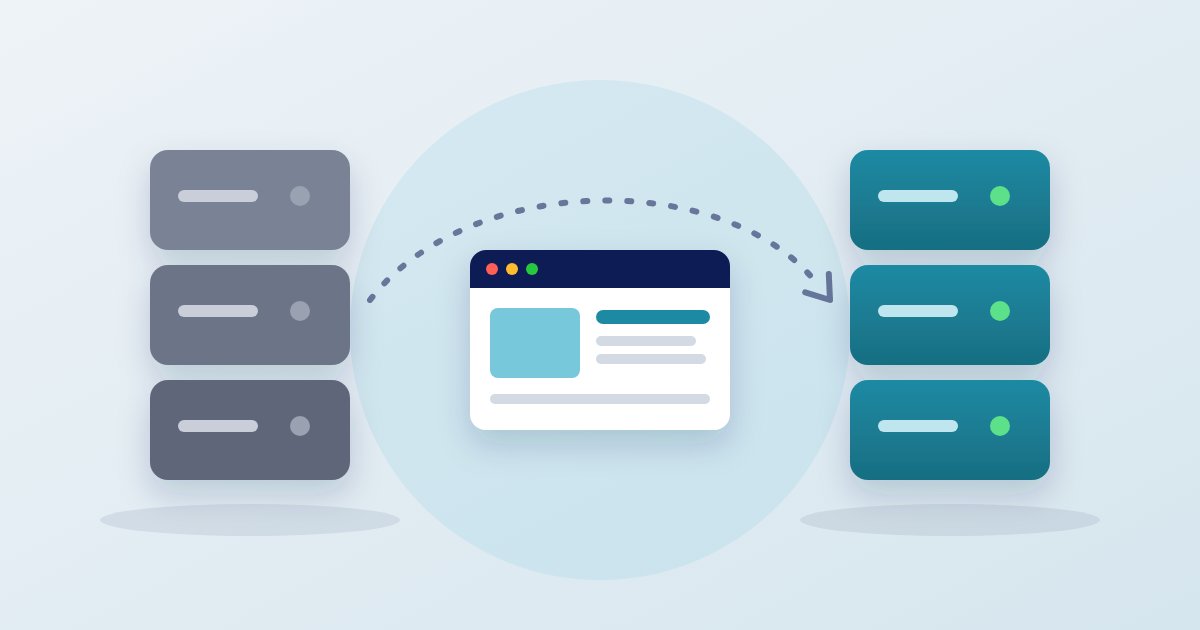
The main principle of a move without downtime is simple: first fully set up and check the website on the new server, and only then switch the domain to it. Let's go through this plan step by step.
Preparation
Before moving anything, collect everything the website relies on on the old server:
- Website files and the database — where they are and how big they are.
- PHP version and extensions. If the new server has a different version, the website may not start or may work with errors.
- Web server settings — .htaccess files or the Nginx configuration with redirects and headers.
- Cron jobs — mailings, cleanup, sync, backups.
- All DNS records of the domain — not just A, but also AAAA, www, MX and TXT. It's handy to copy them as a list from the DNS panel.
- Email on the domain — if the mailboxes are on the same hosting, they'll have to be moved too.
- External services — webhooks of Telegram bots and payment systems, and services where the server's IP address is specified.
💡 Tip: make a full backup of the website and the database before you start. If something goes wrong, you'll always have something to go back to.
Lower the TTL in advance
TTL is how long DNS servers and providers remember your domain's address. If the TTL is a day, after the IP address changes some visitors will keep reaching the old server for another day.
So a day or two before the move, lower the TTL of the A record (and AAAA, if there is one) to 5 minutes. You need to wait as long as the old TTL was — then by the time you switch, everyone will already know about the short TTL, and the new address will spread within a few minutes.
Moving files and the database
The easiest way to move files is an archive via the hosting panel or FTP. If you have SSH access to both servers, it's more convenient to copy them directly with rsync:
rsync -avz /var/www/example.com/ user@203.0.113.10:/var/www/example.com/Here 203.0.113.10 is the new server's IP address. Export the database on the old server and import it on the new one:
mysqldump --single-transaction -u user -p database > database.sql
mysql -u user -p database < database.sql
The --single-transaction option makes a consistent copy of InnoDB tables without stopping the website. After importing, check the database connection settings in the website configuration: the database name, user and password on the new server are almost always different.
Don't forget to move the cron jobs and check file permissions: folders for uploads and cache must be writable by the website.
Checking before the DNS switch
This is the key step that makes a move without downtime possible. The domain still points to the old server, but you can open the website on the new one by setting its address just for your computer. To do this, add a line to the hosts file:
203.0.113.10 example.com www.example.comOn Windows the file is at C:\Windows\System32\drivers\etc\hosts, on Linux and macOS — /etc/hosts. Now your browser will open the website from the new server, while all other visitors still use the old one. You can also check the server's response without editing files using curl:
curl -I --resolve example.com:80:203.0.113.10 http://example.comGo through the website: the home page, inner pages, forms, the admin panel, image uploads. Look at the PHP error log on the new server — that's usually where problems with the PHP version and extensions show up.
⚠️ Important: after checking, remove the line from the hosts file, otherwise your computer will keep opening the website at this address no matter what happens with DNS.
SSL certificate
The SSL certificate is where people stumble most often. A free Let's Encrypt certificate checks that the domain points to the server requesting it. But the domain still points to the old server, so issuing a certificate on the new one before the switch usually doesn't work. Options:
- Move the current certificate from the old server — it will keep working until it expires, and renewal will then happen on the new one.
- Issue a certificate with a DNS check — Let's Encrypt checks a TXT record in DNS and doesn't care where the domain points.
- Issue a certificate right after the switch — the simplest way, but for a few minutes visitors may see an insecure connection warning.
If the certificate isn't issued, sort out the error with the article "Let's Encrypt Certificate Not Issued". A common cause during a move is a www record that points not to the new server but, for example, to the registrar's parking page.
If data on the website changes
For a business card website with static pages, you can skip this step. But if the website receives orders, requests, comments or sign-ups, the data will change between copying the database and switching the domain — and the new records will stay on the old server.
To avoid this, right before the switch export the database once more and import it on the new server. And while switching, close forms and orders on the old server, for example by showing a short maintenance message.
Switching the domain
Once the website on the new server is checked, change the IP address in the A record in the DNS panel to the new one. Don't forget the AAAA record (IPv6), if there is one, and the www record. You can check that the changes have spread with dns.google or the dig command:
dig +short example.com A⚠️ Important: don't turn off the old server right away. Some providers remember addresses longer than they should, and some visitors may keep reaching the old website for a couple of days.
After the move
- Check the website for real — without the hosts file, from a phone on mobile internet and from another computer.
- Check the certificate and redirects — from http to https and from www to the main address.
- Check email. If the SPF record contains the old server's IP address, emails from the website will start going to spam — update the record.
- Check cron and backups on the new server.
- Look at the old server's logs. Once requests to it almost stop, it can be turned off.
- Restore the normal TTL, for example an hour or a day.
Common problems
- The panel's placeholder page opens instead of the website. The server didn't find a website for this domain — see the causes in the article "FastPanel Placeholder Page Instead of Your Website".
- A blank page or a 500 error. Most often a different PHP version, a missing extension or wrong database credentials. The details are in the error log.
- The website doesn't open for everyone. An old AAAA record is left, or DNS hasn't updated for some visitors yet.
- Images or files don't upload. Folders lack write permissions, or the files weren't copied completely.
- Emails from the website don't arrive or go to spam. The SPF record wasn't updated, or the new hosting blocks the port for sending mail.
Summary
Collect everything the website relies on, lower the TTL in advance, move the files and the database, check the website on the new server via the hosts file and take care of the certificate. Only after that switch the domain, and keep the old server running for a few more days.
🚚 If you need help moving to new hosting, message me — I'll move your website without downtime.
Published